
Turn any image into a clean SVG
Drop in a PNG, JPG, logo, or sketch and get a real vector back: a filled SVG cut file that weeds easily on Cricut and Silhouette, or a single-line draw file your pen plotter follows in one pass. It runs in your browser, with nothing to install.
- PNG, JPG, WebP, GIF, BMP, and TIFF in, standard SVG out
- Cut files for vinyl and cardstock, with layered colors
- Single-line draw files for pens and plotters
- Free preview, watermark-free download with Pro
Free to try, no account needed. Pay only when you keep a font.
Try it right here
Drop in a logo, sketch, or clipart. Every mode previews free with no account; the clean file is Pro.
The plain details
- Accepts
- PNG, JPG, JPEG, WebP, GIF, BMP, TIFF
- Max file size
- 25 MB per image
- Gives you back
- A standard SVG (cut paths or pen lines); single-line and one-color downloads can also be DXF for CNC and CAM software
- Opens in
- Cricut Design Space, Silhouette Studio, Inkscape, LightBurn, Glowforge, AxiDraw and NextDraw software
- Runs
- In your browser, nothing to install
- Cost
- Free to upload and preview. Clean download with Pro, $6/month or $48/year
Your upload is processed in memory to make the SVG. It is not stored, published, or reused, and the artwork stays yours.
Pick the right mode for your project
The right SVG depends on what your machine will do with it, so the converter has three modes instead of one-size-fits-all.
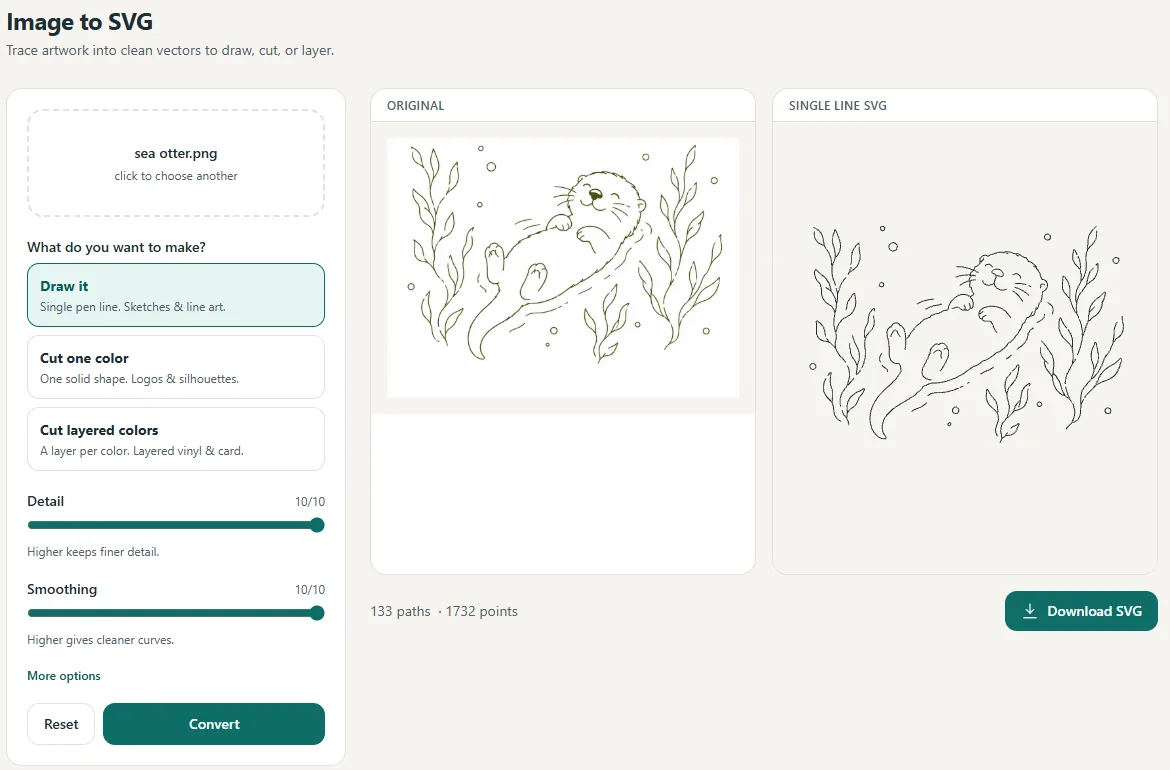
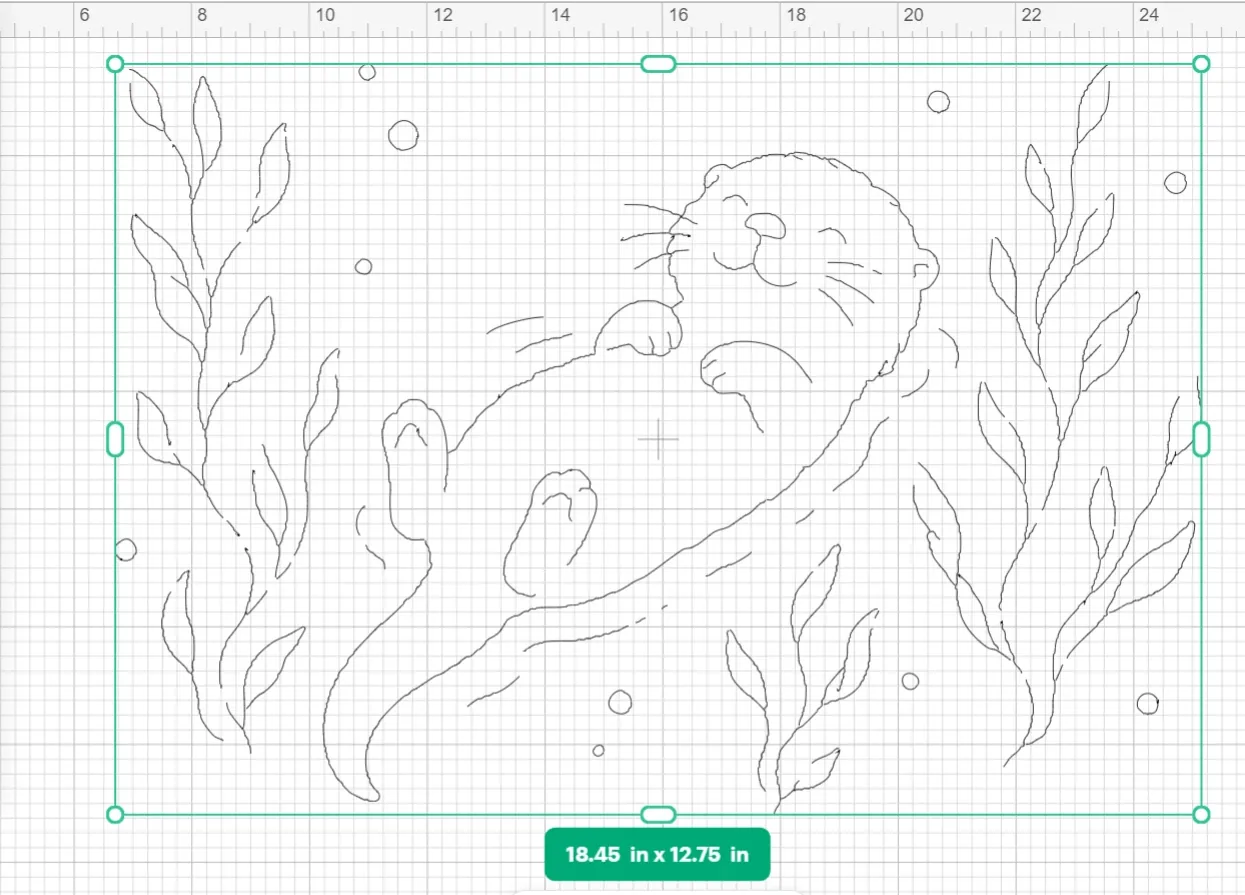
Draw it (single line). For pen plotters and Cricut pens. Instead of outlining your sketch, it finds the centerline of every stroke, the path a pen would actually take, so an X stays two crossing lines and letters stay writing instead of bubbles. Use it for line art, doodles, signatures, and anything you want drawn, not cut. There is a fuller walkthrough of the single-line mode if that is what you came for.
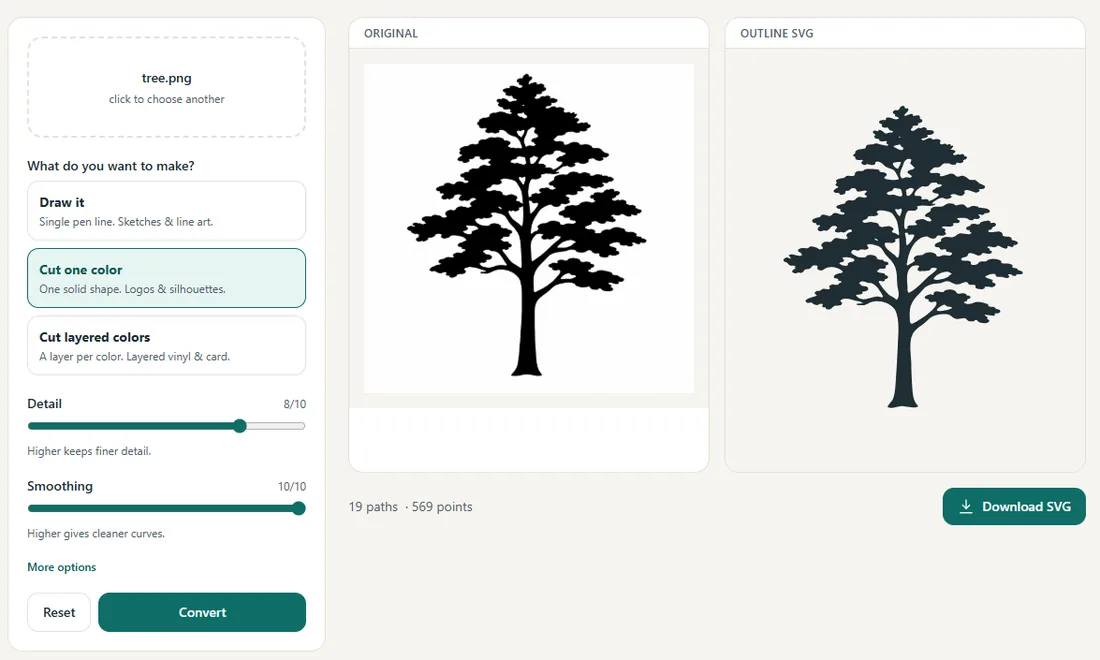
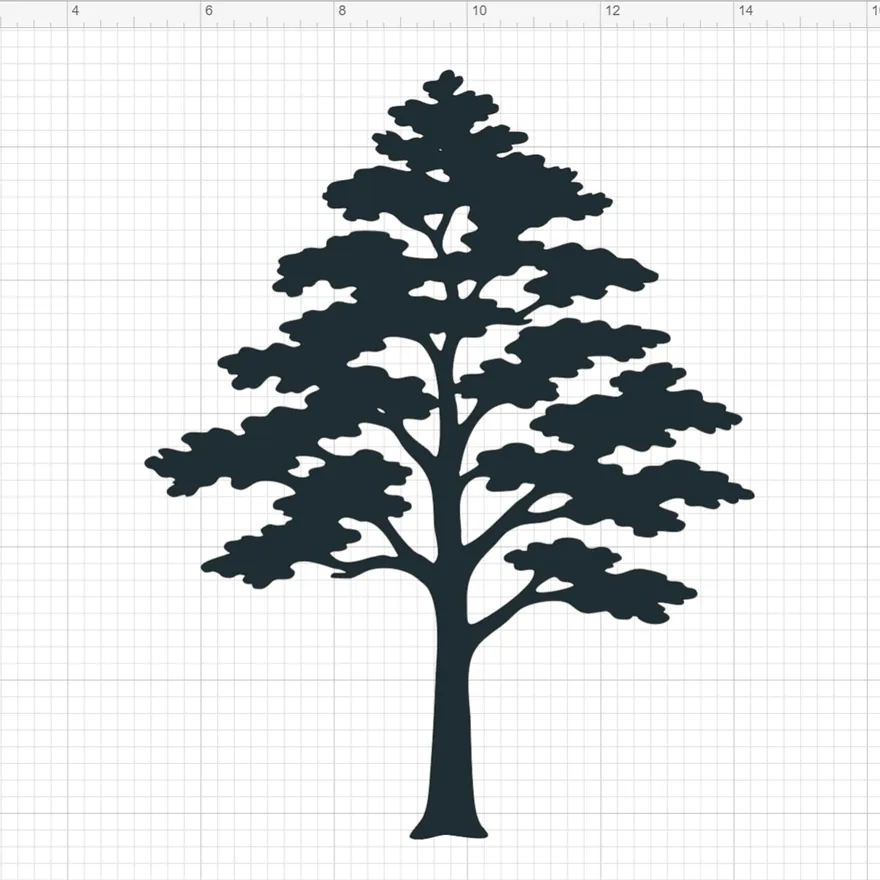
Cut one color. For vinyl, cardstock, and stickers. Your image becomes one solid shape with holes where they belong, so the file cuts and weeds cleanly on a Cricut or Silhouette. Great for logos and silhouettes.
Cut layered colors. For layered vinyl and cardstock projects. Each color in the image becomes its own clean layer, with tiny specks and fuzzy in-between shades absorbed instead of turning into confetti you would have to weed. Small-but-important details like eyes and whiskers survive.
Why the output stays clean
Free auto-tracers tend to produce thousands of jagged points that look fine on screen and terrible on a mat. This converter fits smooth curves through your shapes with sharp corners kept genuinely sharp, removes specks below a size a cutter could even handle, and fills pinholes. The preview shows exactly what you will download, so nothing is a surprise after you cut.
Plotting the result? Run it through the plotter SVG optimizer afterwards so the pen draws it in the fewest possible moves.
How this compares to the other ways to convert an image
| Just Get Crafty | Uploading straight to Cricut Design Space | A typical free online auto-tracer | |
|---|---|---|---|
| What you get back | A true vector SVG: smooth fitted curves with sharp corners kept sharp | The image stays a picture: print-then-cut, or a rough cut outline around it | A vector, often with thousands of jagged points following the pixel edges |
| Single-line (centerline) output for pens | Yes, a real centerline an X draws as two strokes | No | No, outline tracing only, so a pen draws every line twice |
| Layered color cut files | Yes, one clean layer per color, with mixture bands absorbed | No, colors are not separated into cut layers | Sometimes, usually with extra phantom layers from anti-aliasing |
| Cleanup for cutting | Specks below a weedable size removed, pinholes filled, holes subtracted | Manual erase and despeckle tools | A speckle slider, all or nothing |
| Edit before you download | Delete a piece, recolor, hide or reorder layers, with undo | Basic erase and crop at upload time | Rarely, export and fix it in another app |
| Cost | Free to preview, $6/month or $48/year for clean downloads | Included with Design Space | Free tiers are usually watermarked or credit-limited |
Based on each tool's public behavior at the time of writing. Cricut and Design Space are trademarks of their owner; this is an honest comparison, not an affiliation.
Turn any image into clean lines
Drop in a logo, sketch, or photo. Get a single line to draw, or a clean cut file to cut.
Pick what you're making
One upload, three ways out, for plotters or cutters.
Draw it
One clean pen line for sketches and line art.
Cut one color
One solid shape for logos and silhouettes.
Cut layered colors
A layer per color for vinyl and cardstock.
How to convert an image to an SVG
The whole thing runs in your browser. There is nothing to install and no account needed to see the result.
Upload your image
Drop in a PNG, JPG, JPEG, WebP, GIF, BMP or TIFF file, up to 25 MB. Clean logos, line art and simple sketches give the sharpest vectors; busy photos work but come back more complicated.
Pick what your machine will do with it
Cut layered colors turns each color into its own cut layer for layered vinyl or cardstock. Cut one color makes a single solid cut file with the holes subtracted. Draw it finds the centerline of every stroke for pen plotters and the Cricut pen.
Check the preview
The preview is the real traced geometry, not a mockup: smooth curves fitted through your shapes, genuine corners kept sharp, specks below a cuttable size removed and pinholes filled. What you see is what the file contains.
Clean it up if you need to
Click any piece to select it and delete it, recolor or hide a whole layer, reorder the layers, and undo anything. Edits apply to the file you download, not just the picture on screen.
Download the SVG and import it
The file is a standard SVG, so Cricut Design Space, Silhouette Studio, Inkscape, LightBurn and pen-plotter software all read it. Previewing is free; the clean, watermark-free download comes with Pro.
Questions, answered
Is it free?
Yes, trying it is completely free with no account: upload an image and preview any of the three modes, single line, one color, or layered. Previews carry a light watermark; a Pro subscription ($6 a month or $48 a year) unlocks the clean, watermark-free download.
Can I convert a PNG to an SVG for Cricut?
Yes. Drop the PNG in, choose Cut one color or Cut layered colors, and you get a real vector SVG that Cricut Design Space imports as cut paths. JPG, JPEG, WebP, GIF, BMP and TIFF work the same way, up to 25 MB per file.
What file types can I upload, and how big?
PNG, JPG, JPEG, WebP, GIF, BMP and TIFF, up to 25 MB. The output is always a standard SVG. PDF and existing SVG files are not accepted as input, since they are already vectors.
Does it work with photos from my phone?
Yes, though simple subjects convert best. If your iPhone saves photos as HEIC and the upload is refused, take a screenshot of the photo or set the camera to Most Compatible, which saves JPG instead.
What is the single-line option for?
It traces the centerline of every stroke instead of outlining the shape, which is exactly what pen plotters, foil quills, Cricut pens and laser engravers need. An X stays two crossing lines rather than a hollow outline drawn twice.
How is this different from uploading the image straight into Design Space?
Design Space's upload keeps the image as a picture to print, or gives a rough cut path around it. This converter produces a true vector: smooth fitted curves, sharp corners kept sharp, specks removed, holes subtracted, and for drawing, real pen centerlines Design Space cannot make at all.
Can it make layered SVGs for vinyl?
Yes. The layered mode splits your image into one clean layer per color, absorbing the anti-aliasing fuzz and JPEG mixture bands that would otherwise become tiny unweedable pieces, while small but important details like eyes and whiskers survive.
Does it work for Silhouette, Glowforge and pen plotters?
Yes. The output is a standard SVG, so Silhouette Studio, Cricut Design Space, Inkscape, LightBurn, Glowforge and AxiDraw or NextDraw plotter software all read it.
Can I edit the result before downloading?
Yes. Click any piece to select it and delete it, recolor or hide a whole layer, reorder layers, zoom and pan, and undo anything. Your edits are applied to the clean file you download, not just to the preview.
What image types work best?
Clean logos, line art, coloring-book style drawings and simple sketches convert best. Busy photographs can be traced too, but the simpler the image, the cleaner and more usable the vector.
Do I keep the rights to what I convert?
Yes. You upload your own artwork and you keep it. Files are processed in memory to make your SVG and are not stored or reused.
Can I download a DXF instead of an SVG?
Yes. The single-line and one-color modes can download as DXF R12 as well as SVG, which is what CNC and CAM tools like Fusion 360, VCarve and LightBurn expect. Layered files stay SVG, since their whole meaning is stacked color layers.
Related tools and guides
The step-by-step version, straight through to Design Space.
Centerlines for pens and plotters, not outlines.
Reorder the strokes so the pen stops criss-crossing.
Add single-stroke text next to your traced art.
Writing that matches your drawn design.
The photo cleanup built for real handwriting on paper.
Ready to make something?
Draw it, preview it, and keep it when you love it. Pro adds unlimited fonts, the full ready-made shelf, and clean SVG exports.
No credit card needed to start.