
Why Is My Cricut Writing in Bubble Letters? (And How to Fix It)
June 30, 2026 · Updated July 11, 2026
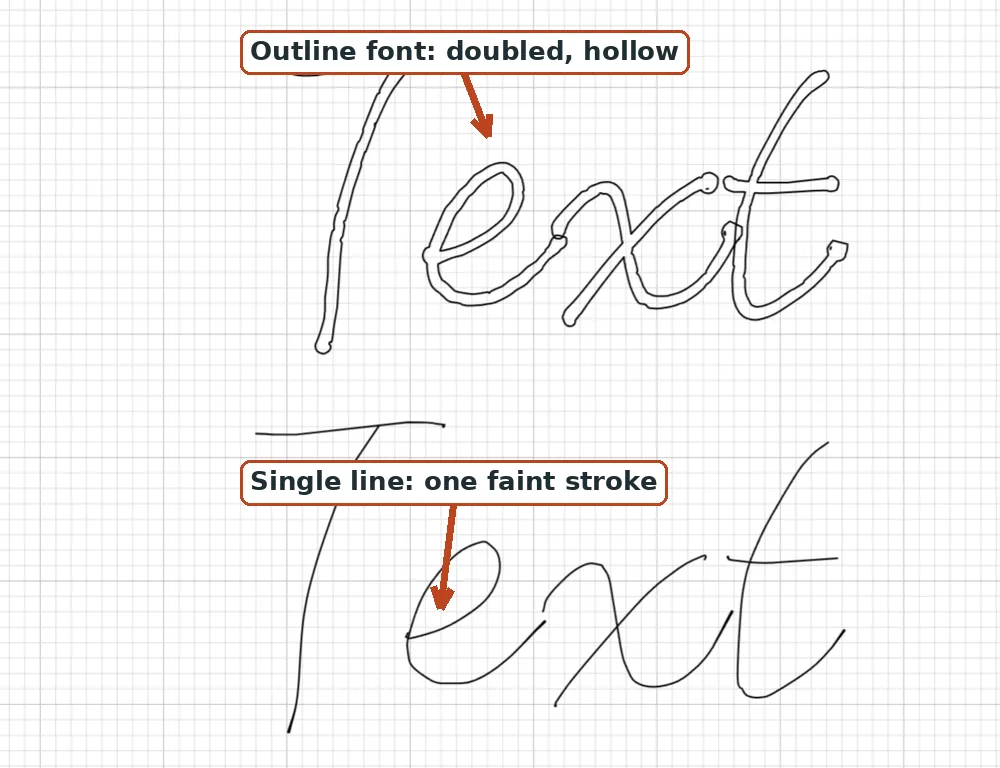
Your Cricut pen is drawing hollow, outlined letters instead of writing them. It is not your machine and it is not your settings, it is the font, and the fix is a single line font. Here is why it happens, the one-step fix, how to install the new font so Design Space actually sees it, and a full checklist for when it still refuses to behave.
The short version: regular fonts are outlines, so a pen traces the edge of each letter and leaves the middle empty. Swap to a true single line font, set the Operation to Pen / Draw, and your Cricut writes it in one clean stroke. Installed the font but it is not in the menu? Fully quit and reopen Design Space, then switch the font filter from Cricut to System.
Why it happens
Almost every font on your computer is an outline font. Each letter is stored as a closed, filled shape, built to be printed or cut, not drawn. When you load a pen, Design Space has no way to "fill" a shape with a single pen tip, so it does the only thing it can: it traces the outline around each letter and leaves the middle empty. The result is bubble letters, the classic hollow "o" that looks like a donut.
This is why no amount of fiddling fixes it. The pen is doing exactly what the font tells it to do. Changing pens, mats, pressure, or machines changes nothing, because the problem is the shape of the letters themselves, not the tool tracing them.
The fix: a single line font
A single line font (also sold as single stroke, monoline, sketch, writing, or engraving font) stores each letter as one path the pen follows once, straight down the center, with no outline and no fill. So the pen writes it in one pass instead of tracing two edges. If you want the full background with pictures, What is a single line font? walks through it.
One myth to clear up first: you do not have to use SVG files. A properly made single line OTF or TTF writes as a single stroke in Cricut Design Space when you install it and set the Operation to Draw. Inside the font file, each glyph draws out and then returns along nearly the same path, so the two edges sit on top of each other and the pen lays down what reads as one line. (This idea is old: the first stroke fonts, the Hershey fonts, were hand-drawn in the 1960s for early pen plotters, and single line fonts have built on that idea ever since.) Ready-made single line SVG or DXF files are a fine alternative, but the font file is the smoother workflow because you can type live.
Three ways to get one, all free to try:
- Use a ready-made one, free: our free single line fonts come in a normal and a single-line weight and download with no account. Browse more in the font library.
- Convert a font you already have with the font to single line converter. Upload the OTF or TTF and get back a version that writes, with the same spacing your layout already uses.
- Make one from your handwriting with the handwriting font generator, so your Cricut writes in your own hand.
Here is how the four kinds of fonts actually behave when a pen meets them:
| Font type | How it looks on screen | What the pen actually does | Best use |
|---|---|---|---|
| Regular outline font | Solid, filled letters | Traces the edge, leaves a hollow middle | Cutting, not writing |
| Very thin font | Thin but still solid | Draws two close edges, still bubbles a little | Not recommended for writing |
| Cricut "Writing" style font | Varies | Often a double line unless it is truly single line | Quick built-in option |
| True single line font | Faint hairline | One clean stroke, center of the letter | Writing, foil, engraving |
It can look empty on screen, do not panic
A true single line font has no outline and no fill, just one hairline path. So after you install it and type with it, the text can look very thin, faint, or even empty, like nothing is there. This scares almost everyone the first time.
The stroke is there. It simply has no width on a screen until a pen or plotter draws it. Zoom in and you will see the line. Once the Operation is set to Draw, the Design Space preview shows exactly what the pen will write.
Install it so Design Space sees it
Design Space only uses fonts installed on your computer, which it calls System fonts, and it only scans for new ones when it launches. The install is easy. The restart is the step everyone misses.
- Download the font. If it arrives as a .zip, unzip it first (right-click and choose Extract on Windows, or double-click the .zip on Mac).
- Install the .ttf or .otf file. On Windows, right-click it and choose Install (or Install for all users). On Mac, double-click it so it opens in Font Book, then click Install Font.
- Fully close Cricut Design Space, then reopen it. It only loads fonts on startup. This is the step everyone misses, and it is why "the font is not showing up" is the most common complaint.
- In your text's Font menu, switch the filter from Cricut to System, then search the font's name.
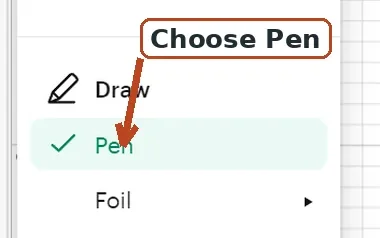
- Set the Operation to Pen / Draw, then click Make It. The preview should now show single clean strokes, not outlines.
Same steps, side by side:
| Step | Windows | Mac |
|---|---|---|
| Unzip | Right-click the .zip, Extract | Double-click the .zip |
| Install | Right-click the .ttf/.otf, Install | Double-click, then Install Font in Font Book |
| Load into Design Space | Fully quit and reopen | Fully quit and reopen |
| Find it | Font filter = System, search the name | Font filter = System, search the name |

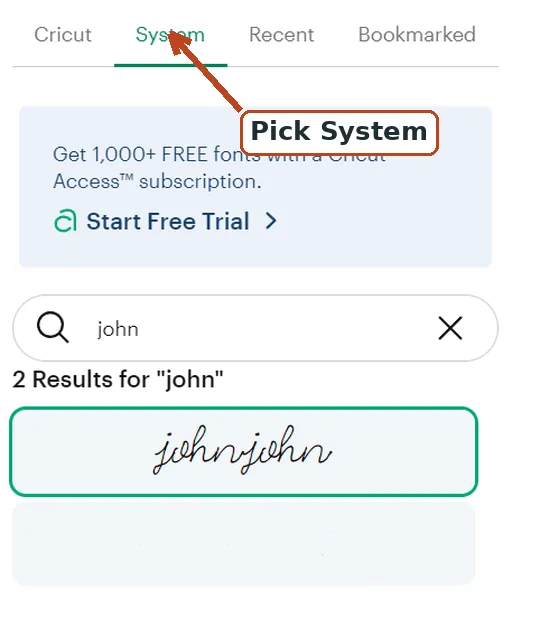
Still not showing up? Close and reopen Design Space once more and double-check the filter is on System, not Cricut. If it is still missing, restart your computer. On a Mac, open Font Book and use Validate Font to confirm the file is healthy and resolve any duplicates, then reopen Design Space. (Skip "Restore Standard Fonts", that only touches Apple's built-in fonts and will not help a custom install.)
The zoom test: is it really single line?
Thin is not the same as single line, and this trips up a lot of people. To check any font before you commit a whole project to it, zoom way in on one stroke:
- One line running down the middle means it is a true single line font. It will write.
- Two parallel edges with a gap between them means it is still an outline font, just a thin one. It will still bubble.
A finer pen tip can hide the gap on a thin outline font so it looks almost right, but it is not a fix, and it will show at larger sizes. The zoom test takes about ten seconds and saves a ruined card.
About Cricut's own "writing" fonts
Cricut has built-in writing fonts, and they are handy, but there is a catch. On a Cricut Access font you have to set the text Style dropdown to Writing (not Regular), or even a writing font draws as an outline. That Style dropdown appears for Cricut's own fonts, not for most installed System fonts, whose single-line-ness is baked into the file instead.
Be honest with your expectations here: many of Cricut's writing-style fonts are actually double-line. They trace a thin outline so each letter reads as two close lines rather than one true stroke. Some are genuinely single line, a large share are not, so run the zoom test on those too. If you want dependable single strokes, an installed single line font is the surer bet. More on the difference in fonts that write, not cut.
The same fix works for foil, engraving, and debossing
Bubble letters are not only a pen problem. Every drawing tool traces a path rather than filling a shape, so a single line font gives one clean pass instead of a doubled outline no matter which tool is in the clamp.
| Tool | Operation setting | Machine | Single line font helps? |
|---|---|---|---|
| Pen or marker | Pen (under Draw) | All Cricut machines | Yes |
| Foil Transfer System | Foil | Cricut Maker, Explore, Joy | Yes |
| Foil quill (third party) | Pen slot, treat as Draw | Many machines | Yes |
| Engrave tip | Engrave | Cricut Maker machines | Yes |
| Deboss tip | Deboss | Cricut Maker machines | Yes |
| Scoring | Score | All Cricut machines | Not needed, it scores lines |
A few specifics worth knowing. Cricut's own Foil Transfer System ships with fine, medium, and bold tips and works on the Maker, Explore, and Joy families. The foil quill is a separate heated tip from We R Memory Keepers that sits in the pen position; both foil methods double-line ugly with a normal font, so reach for single line (best fonts for foil quill, or the foil quill fonts collection). The Engraving and Debossing tips are QuickSwap tools for Cricut Maker machines, and a single line font is exactly what you want so the tip cuts one clean centerline instead of outlining each letter. See single line fonts for engraving for that setup.
The pen and clamp part (why swapping pens never helps)
The pen goes in Clamp A, the accessory clamp, not Clamp B (Clamp B holds the blade). Remove the cap and push the pen down until it clicks. Because the pen and the blade live in different clamps, changing pens or buying a "better" one cannot fix bubble letters, the font is still an outline.
Tip size does affect how clean the writing looks, though. Cricut Fine Point pens are 0.4mm (marked "F"), Medium markers are 1.0mm (marked "M"), and there is a 2.5mm permanent marker (remove the adapter to fit it). Infusible Ink comes as 0.4mm pens and 1.0mm markers. A finer 0.4mm tip makes any near-single-line font read cleaner, but remember it hides a thin outline's gap rather than fixing it. Full walkthrough in how to write with a Cricut pen.
Still drawing bubbles? Run down this list
| Symptom | Likely cause | Fix |
|---|---|---|
| Letters still hollow | Not a true single line font, or a Cricut font's Style is not Writing | Run the zoom test, switch fonts, or set Style to Writing |
| Font missing from the menu | Design Space was not restarted, or the filter is on Cricut | Fully quit and reopen, set the filter to System |
| Text draws in the wrong spot or scattered | The text is not attached | Select everything and click Attach before Make It |
| Pen not drawing at all | Operation is on Basic Cut, or the pen is in the wrong clamp | Set Operation to Pen, put the pen in Clamp A |
Attach deserves a note of its own: it fixes your text to its layer so Design Space draws it exactly where you placed it instead of rearranging separate letters across the mat. Attach the text before you hit Make It. The full workflow, including the welding trick for connected script fonts, is in how to use single line fonts in Cricut Design Space.
Using a Silhouette instead?
Same problem, same fix. In Silhouette Studio, sketch pens draw the identical bubble outline with a normal font. Use a sketch font (single line font), set the line to a sketch or draw style, and make sure overlapping script letters are welded or genuinely overlap, because non-overlapping letters get sketched as separate outlines. Single line files also import cleanly as SVG or DXF if you would rather upload than install, and our image to single-line SVG converter can trace artwork to a single pen line the same way. If you need the opposite, a cut file rather than a drawn one, converting a PNG to an SVG for Cricut is the other half of the job.
Single line is not the same as filling a letter
One quick clarification, because searchers mix these up. If your goal is to write a letter in one stroke, you want a single line font, everything above. If instead you want a solid, colored-in look (the pen shading the whole letter), that is a fill technique, not single line: add an Offset with a small negative value (around -0.025in is a common starting point, it varies by font) to close the gaps, or use a hatch or slice fill. Do not expect a single line font to fill a shape, and do not expect an outline font to write.
Frequently asked questions
Why is my Cricut drawing outlined or bubble letters instead of writing?
Your font is an outline font, so each letter is a filled shape and the pen traces the edge, leaving the middle empty. Swap to a true single line font (one stroke per letter) and the pen writes it in one pass.
Do single line fonts really work as installed TTF or OTF files in Cricut?
Yes. A properly made single line OTF or TTF writes as a single stroke when you install it, filter the font menu to System, and set the Operation to Draw. You do not have to use SVG files, though single line SVGs are a fine alternative.
Why is my font not showing up after I installed it?
Design Space only scans for fonts when it launches, so fully quit and reopen it after installing, then switch the font filter from Cricut to System and search the name. A missing restart is the most common reason by far.
Are Cricut's own writing fonts single line?
Some are, but many are double-line: they trace a thin outline so letters look like two close lines. On a Cricut font, set the Style dropdown to Writing, and run the zoom test. For dependable single strokes, install a real single line font.
Which clamp does the Cricut pen go in?
Clamp A, the accessory clamp. Remove the cap and push the pen down until it clicks. Clamp B holds the blade, which is exactly why changing pens never fixes bubble letters.
Can I turn a regular font into a single line font?
Yes. A converter finds the centerline of each letter and rebuilds it as one stroke, keeping the original spacing. Results are cleanest for monoline and script fonts and rougher for high-contrast serifs with thick-and-thin strokes. You can try it on any OTF or TTF with the font to single line converter.
Does this fix work for foil quill and engraving too?
Yes. Foil (the Foil Transfer System or a foil quill) and the Maker engraving and debossing tips all trace a path, so a single line font gives one clean pass instead of a doubled outline.
Once it is fixed, it stays fixed
Install the right font once and this problem disappears for good: every project after this one is just type, set the Operation to Draw, Attach, and go. From there the same single line fonts carry into foil, engraving, addressing envelopes, and pen plotter work, so you learn the trick once and reuse it everywhere. If you want somewhere to start, grab a free single line font and run the zoom test yourself.
Try it while you're here
Your words in real fonts made from real handwriting with this tool.
Loading fonts…
Turn any font you already love into a version that writes instead of outlines.
Convert a font to single lineFree to try, no account needed. Pay only when you keep a font.