
How to Make a Font From Your Own Handwriting (Free)
June 30, 2026 · Updated July 11, 2026
You can turn your handwriting into a real font in about half an hour: draw each letter once, in your browser, and download a font that installs like any other, no scanner, no printer, no special software, and no perfect penmanship required. You get a standard OTF font you can type with anywhere, plus a matching single-line version for pens and plotters. Here is exactly how it works, what you get, and the small tips that make a homemade font look genuinely like you.
The short version
- You draw each character once on guidelines in the handwriting font generator, no printing or scanning.
- You get two files from one set of drawings: a normal OTF for typing, and a single-line OTF for a Cricut pen, foil quill, or plotter.
- Plan on roughly 20 to 40 minutes for a full alphabet, numbers, and punctuation. Any single letter can be redrawn and rebuilt in minutes.
- It works anywhere fonts work: Word, Google Docs, Canva, Procreate, and Cricut Design Space.
- Drawing, building, and previewing your whole font is free. You pay only to download clean, watermark-free files.
What "a font from your handwriting" actually means
You make your version of each character once: the alphabet in caps and lowercase, the numbers, and punctuation. Those drawings get built into a real OTF font file. From then on you can type anything and it comes out in your hand: cards, labels, invitations, teacher gifts, your kid's name on absolutely everything. Because it is a standard installed font, it works in Word, Google Docs, Canva, Procreate, and Cricut Design Space, anywhere fonts work.
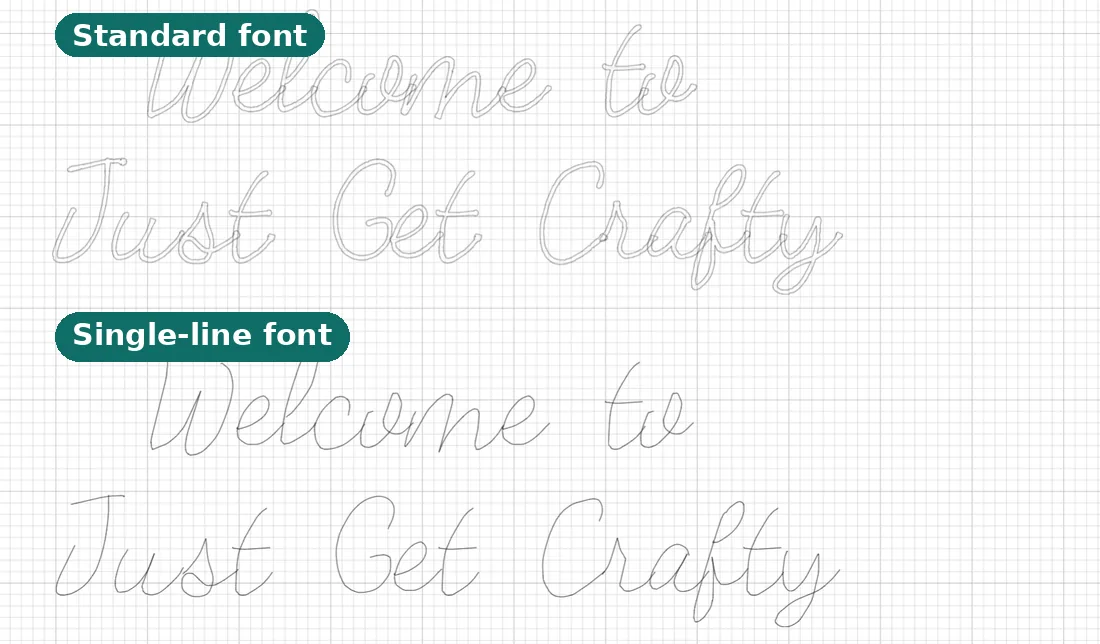
The part most makers do not get: the same drawings also build a single-line version at the same time, kept in step with the normal one so the spacing matches. That is the file a machine needs when it draws instead of cuts. More on that below.
Why drawing on screen beats print-and-scan
The old way to do this was to print a paper template, write in every box with a marker, scan the sheet, and upload it, then fix all the speckles and crooked letters the camera added. It works, but it is slow, and the four corner markers have to land in the scan or the whole page fails. Dislike three letters? You reprint and rescan the entire sheet.
Drawing directly on screen removes all of that. What you draw is exactly what lands in the font, with no scan artifacts to clean up, and any single letter can be redrawn on its own without touching the rest.
| What happens | Draw on screen | Print and scan |
|---|---|---|
| Getting started | Open the browser and draw | Print a template, write, scan it back |
| Fixing one letter | Redraw it, rebuild | Reprint and rescan the whole sheet |
| Image cleanup | None, what you draw is the font | Remove speckles and skew from the scan |
| Single-line version | Built automatically | Not produced |
| Gear required | A browser (a stylus is optional) | Printer and scanner, or a steady camera |
If you want the honest side-by-side with the best-known scan-based tool, our Calligraphr comparison lays it out plainly, and there is a short version further down this page.
The steps
- Start a new font. No account hoops; you can begin drawing immediately.
- Draw each letter on the guidelines: capitals, lowercase, numbers, and punctuation. The guides show where the letter body, ascenders, and descenders belong, so everything lines up when you type.
- Preview real words. Type your name, an address, a favorite quote. Seeing actual words is the moment it clicks, and it shows you which letters deserve a redraw.
- Pick a pen weight. A fine weight reads like a real pen; bold reads like a marker. The preview shows the true ink look, live.
- Fix the spacing. Letters space themselves automatically first, then you can nudge any letter's borders by hand until words feel right.
- Download and install. Double-click the font file and click Install (Windows) or Install Font (Mac). It is then available everywhere on your computer.
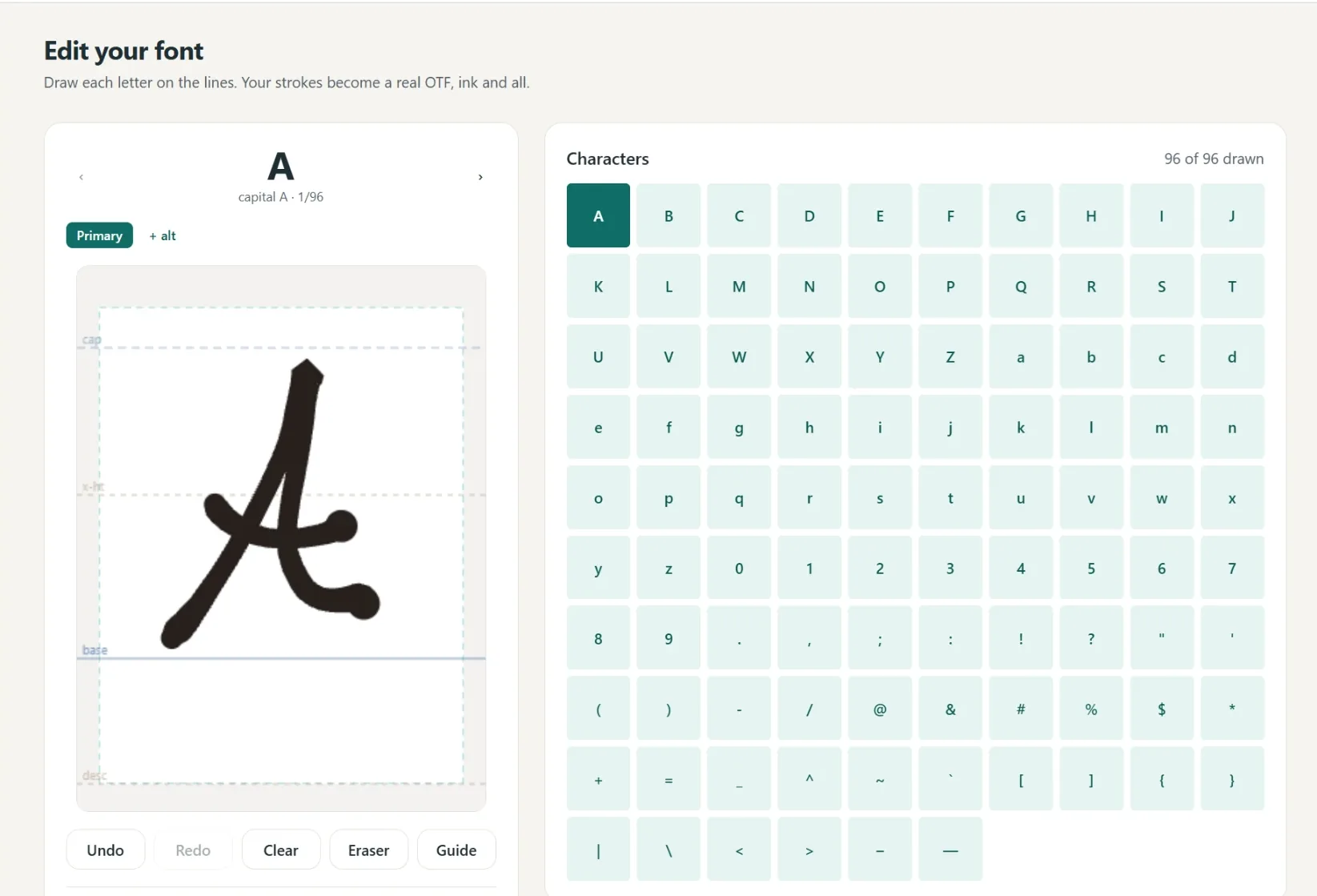
The whole first pass usually takes 20 to 40 minutes. The good news is that nothing is locked in: because there is no sheet to reprint, you can come back and redraw a single ugly letter any time and rebuild in minutes.

What to draw: a character-set checklist
You do not need to draw hundreds of glyphs. The printable set most people ever type is about 95 characters. Cover these groups and your font handles real sentences without gaps.
| Group | Characters | Why it matters |
|---|---|---|
| Uppercase | A to Z (26) | Names, titles, the start of every sentence |
| Lowercase | a to z (26) | The body of nearly every word |
| Digits | 0 to 9 (10) | Dates, addresses, prices, quantities |
| Everyday punctuation | period, comma, apostrophe, question mark, exclamation point, quotes, hyphen, colon, parentheses | Keeps real sentences from breaking the illusion |
| Handy extras | & @ $ # % | "Smith & Co," email handles, prices, hashtags |
The apostrophe and comma are the ones people forget, and they show up in almost every sentence. Draw those even if you skip the fancier symbols.
The bonus that matters for makers: a single-line version
Most font makers stop at the normal font. Here, the same drawings also build a single-line version automatically: each letter as one centered pen stroke instead of a filled outline. That is the version a Cricut pen, foil quill, or pen plotter needs, because machines that draw follow a path down the middle of a stroke.
A normal font only gives them the letter's outline, so with the Operation set to Pen or Draw the machine traces both edges of every letter and you get hollow, doubled bubble letters. A true single-line font gives the pen one line to follow, so it writes the way you actually write.
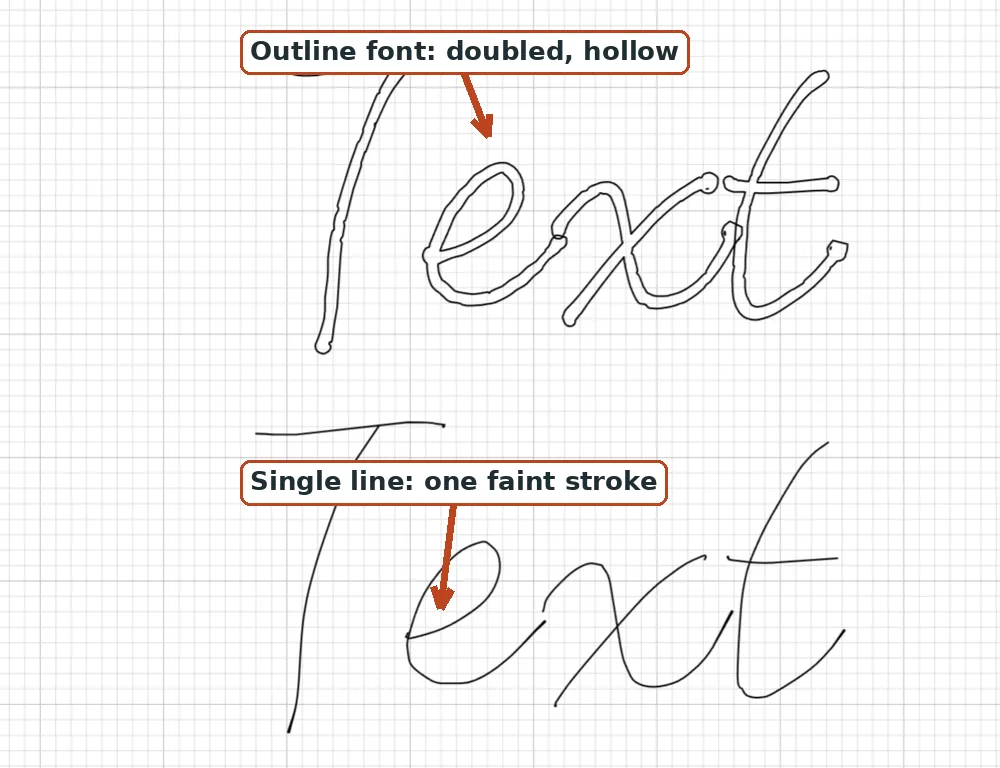
This is not a new idea, just an underused one. The original stroke fonts, the Hershey set, were designed by Dr. A. V. Hershey for the US government in the 1960s and released publicly in the 1970s precisely so machines could draw letters from centerlines. Every pen plotter, foil quill, and engraver since has needed the same thing. If single-line fonts are new to you, here is the plain-English explainer, and fonts that write, not cut covers why so many "writing fonts" secretly do not.
| Version | Best for | What it looks like |
|---|---|---|
| Normal (dimensional) OTF | Typing, cards, printing, screen | Filled letters with real ink weight |
| Single-line OTF | Cricut pen, foil quill, plotter, engraving | One thin path, faint on screen, correct once a tool gives it width |
One honest caveat: a single-line font looks thin and faint on your monitor because it is a hairline with no fill. That is normal. It writes at full width the moment a pen, foil tip, or engraving bit gives it real body. To set it up in Design Space, single-line fonts for Cricut and how to use single-line fonts in Cricut Design Space walk through it.
What device do you need?
None in particular. A tablet with a stylus feels closest to real writing because the canvas picks up your speed as you draw, but a plain mouse works fine, and so does a finger on a phone.
| Device | How it feels | Good to know |
|---|---|---|
| Tablet + stylus (like an iPad and Apple Pencil) | Closest to real writing | The canvas follows your natural speed |
| Mouse or trackpad | Slower but precise | Draw a little slowly and redraw freely |
| Phone with your finger | Surprisingly workable | Great for a quick letter or a fix on the go |
Tips for a font that actually looks like you
- Write naturally, at your normal speed. Slow, careful drawing looks stiff when typed. The small wobbles are what read as handwriting.
- Keep letters a consistent size relative to the guidelines, so words sit evenly on the line.
- Do the punctuation. A comma, apostrophe, period, and question mark show up in almost every real sentence; a font without them breaks the illusion fast.
- Mind your most common letters. E is the most common letter in English, followed by T, A, O, I, and N. Those few carry most of what you write, so if they feel right, the whole font feels right.
- Preview with real text, then redraw the worst three letters. Every alphabet has a few duds on the first pass. Redrawing just those takes minutes and lifts the whole font.
- Want a joined, cursive look? The builder can connect letters instead of only placing them side by side, so a script hand can flow. Keep your strokes exiting and entering at a consistent height and it stitches together more cleanly.
Where you can use your font
Once it is installed, your handwriting is just another font in the menu, so it goes wherever you type. A few maker-friendly ideas:
- Handwritten cards, labels, and invitations printed straight from Word, Canva, or Google Docs.
- Addressed envelopes drawn by a Cricut pen with the single-line version, one at a time or a whole guest list at once. See address envelopes with Cricut and wedding envelope addressing.
- Foil-quill titles and gift tags in your own hand. Our best fonts for foil quill roundup and the foil quill fonts page pair well here.
- Engraved gifts, wood signs, and metal tags on a plotter or engraver, where a single-line hand looks far better than a cut outline. See single-line fonts for engraving and pen plotter fonts.
- Vinyl decals and cut projects using the normal outline version.
Already have a favorite store-bought font you wish would write cleanly? You can feed any OTF or TTF through the font to single line converter and get a centerline version that keeps the original spacing.
How it compares to Calligraphr, honestly
Calligraphr is the tool most people find first, and it is genuinely good at what it does. It is built around the print-and-scan method, it outputs a standard outline font, and it has a limited free tier with more variety on its paid plan. What it does not do is make a single-line version, so its fonts draw as bubble letters on a pen.
| Feature | Our tool | Calligraphr |
|---|---|---|
| Input method | Draw on screen | Print a template and scan it |
| Output format | OTF, plus a matching single-line OTF | Standard outline font |
| Single-line / pen version | Built automatically | Not produced |
| Redo one letter | Redraw and rebuild, nothing to scan | Reprint and rescan the sheet |
| Commercial license | Included with Pro | Varies by plan |
If print-and-scan suits you and you only need a normal font, Calligraphr is a fine choice. If you craft with a pen, foil quill, or plotter, the single-line sibling is the reason to draw on screen instead. The full breakdown lives on the comparison page.
Troubleshooting
- My font does not show up in Cricut Design Space. Fully close and reopen Design Space, then look under the System font filter. If it still is not there, restart the computer and check again.
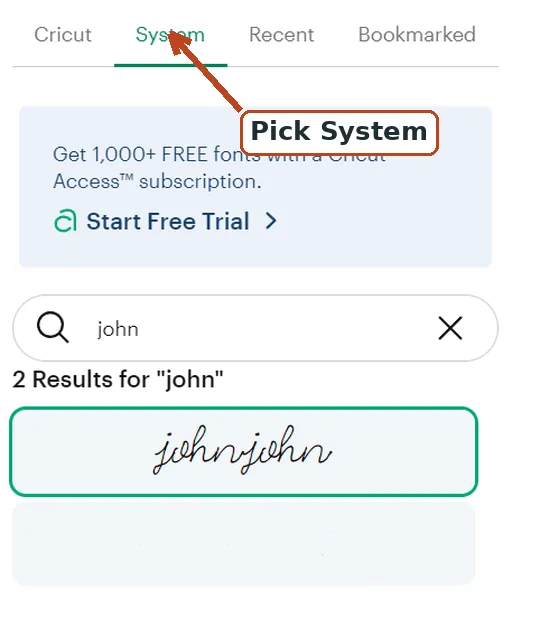
- My font writes in outlined or bubble letters. That is the normal outline font being traced on both edges. Switch to the single-line version, and set the Operation to Pen or Draw. For an installed single-line font you do not look for a "Writing" style; the glyphs are already single strokes, so the Operation setting is what matters. How to write with a Cricut pen has the full setup.
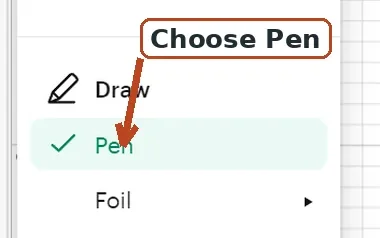
- The single-line version looks faint or almost invisible. Expected. It is one hairline path with no fill, so it looks thin on screen and writes at full width once a pen or tip gives it body.
- My letters sit unevenly on the line. Draw each letter at a consistent size relative to the guidelines, and use the spacing step to nudge any letter's borders until words look right.
What it costs
Drawing, building, and previewing your full font is free, so you can see your handwriting typed out before spending anything. You pay only to download the clean, watermark-free files: Pro is $6 a month or $48 a year and includes a commercial license, so fonts you make can go on things you sell. You just cannot resell the font files themselves.
Not ready to draw your own? The free single-line fonts are ready-made handwriting fonts, each with its single-line sibling, free to download right now with no account and cleared for commercial craft use. Browse the whole font library, or grab a starter set from free single-line fonts for Cricut.
Frequently asked questions
Is it free to turn my handwriting into a font?
Yes. You can draw, build, and preview your whole font free with no account. You pay only to download the clean, watermark-free files: Pro is $6 a month or $48 a year and includes a commercial license. Ready-made handwriting fonts download free.
What file format do I get, and where does it work?
You get a standard installable OTF font, plus a matching single-line OTF. Once installed it works anywhere fonts work: Word, Google Docs, Canva, Procreate, and Cricut Design Space.
Do I need an iPad or Apple Pencil?
No. A tablet and stylus feel most like real writing, but a mouse, trackpad, or a finger on a phone all work fine.
How many characters do I have to draw?
At a minimum A to Z, a to z, 0 to 9, and the everyday punctuation (period, comma, apostrophe, question mark). About 90 to 95 characters gives you a font that handles real sentences without gaps.
Why does my font write in bubble letters with the Cricut pen?
A normal font gives the pen the letter's outline to trace, so you get hollow, doubled letters. Use the single-line version and set the Operation to Pen or Draw so the pen follows one centered stroke.
Can I sell things I make with my font?
Yes, with Pro, which includes a commercial license. You just cannot resell the font file itself.
Why does the single-line version look so thin or faint on screen?
That is normal. A single-line font is one hairline path with no fill, so it looks faint on a monitor. It writes correctly once a pen, foil quill, or engraving tip gives it real width.
Try it while you're here
Your words in real fonts made from real handwriting with this tool.
Loading fonts…
Draw each letter in your browser and get a real font, plus a single-line version.
Make a font from your handwritingFree to try, no account needed. Pay only when you keep a font.